

Help
Using ARIL
ARIL Full is a native macOS AI client for OpenRouter and OpenAI Realtime. ARIL Cloud is the browser product at cloud.aril.host. Both grade prompts, route models, and keep costs transparent with bring-your-own keys.
Install (Full)
- Download ARIL-latest.dmg from this site.
- Open the disk image and drag ARIL into Applications.
- Launch ARIL. Solo mode starts the bundled local gateway automatically.
- Open ARIL → Preferences → Subscription and paste an OpenRouter API key.
Requirements: Apple Silicon Mac · macOS 14 (Sonoma) or newer · an OpenRouter key with a small credit balance. Compare products on Full vs Cloud.
Builds are Developer ID signed and notarized. If an older unsigned build is blocked, right-click the app → Open, or allow it in System Settings → Privacy & Security.
ARIL Cloud
- Open https://cloud.aril.host (Version 1.3) in a modern browser.
- Register or sign in with your email.
- Open Settings and paste your OpenRouter key (BYOK). Add OpenAI or xAI keys if you use Talk.
- Create or unlock an encrypted project, then chat in Auto / Manual / Judge or start Talk.
- Use Playbooks to take an intent from Plan → Build → Deploy → Maintain with live Traefik previews; Activity and Admin System log playbook events.
Full vs Cloud
Full is the notarized Mac DMG: Solo gateway, MCP scanners, OS Access, LaunchAgent schedules, and OpenAI Realtime Voice (optional LiveAvatar Person). Cloud runs in the browser at cloud.aril.host with encrypted projects, Playbooks, multi-user sessions, Chat, Judge, and Talk — no Mac install. Details: aril.host/editions.
First chat
- Type a prompt in the entry field at the bottom of the window.
- Wait for the Intelligence panel — it grades the prompt, estimates tokens/cost, and recommends a model.
- Press Return to send (or click the send button).
The status tray under the window shows gateway, database, OpenRouter credits, session-cache size, the model in use, and the app version.
Auto · Manual · Judge · Loop · Voice
- Auto — Classifies the prompt and picks the mapped model. Prefer wins from Learning/Judge can promote a model for similar prompts.
- Manual — Locks the model you choose (via the status-tray model menu or Preferences → Models). Analysis still runs; the model is not swapped.
- Judge — Runs the same prompt on three capability-matched models, scores them, and lets you Prefer a winner for next time. Honors the shared Web Search preference (each compared model may incur a search fee).
- Loop — Dynamic Loop: give ARIL an objective and it reasons across multiple activities in one session. Each step re-classifies and may switch models, keeps a per-session scratchpad, and shows an operational timeline (model select, tools, synthesising, next step). A Autonomous keeps stepping until done, Stop, or a budget/context block. B Confirm each step pauses for Continue / Stop. Loop sessions use their own sidebar history.
- Voice — Connects directly to OpenAI Realtime over WebSocket for speech-to-speech conversations. Choose a Realtime model and output voice, set a standing Voice session prompt, then use the mic and Send controls. Stop interrupts a long spoken reply. Continuous mode keeps listening between turns; say “Exit chat” (or similar) to close the session, or “pause for now” to pause without ending it. The Language popover sets spoken conversation and transcript languages independently. When Web Search is on, Voice can look up live information through OpenRouter. When Preferences → MCP has ready servers, Voice can call them mid-conversation (results stay on this Mac; OpenAI only sees the tool output text). OS Access and Email work the same way when Skills are on (Email needs SMTP configured; ARIL asks before sending). Transcripts, token usage, and estimated OpenAI cost are saved in dedicated Voice history.
Voice Connection Modes
Voice in ARIL Full offers three Connection Modes under Settings → Voice → Connection Mode. The diagram shows how each reaches OpenAI Realtime, xAI Grok, and LiveAvatar capabilities.
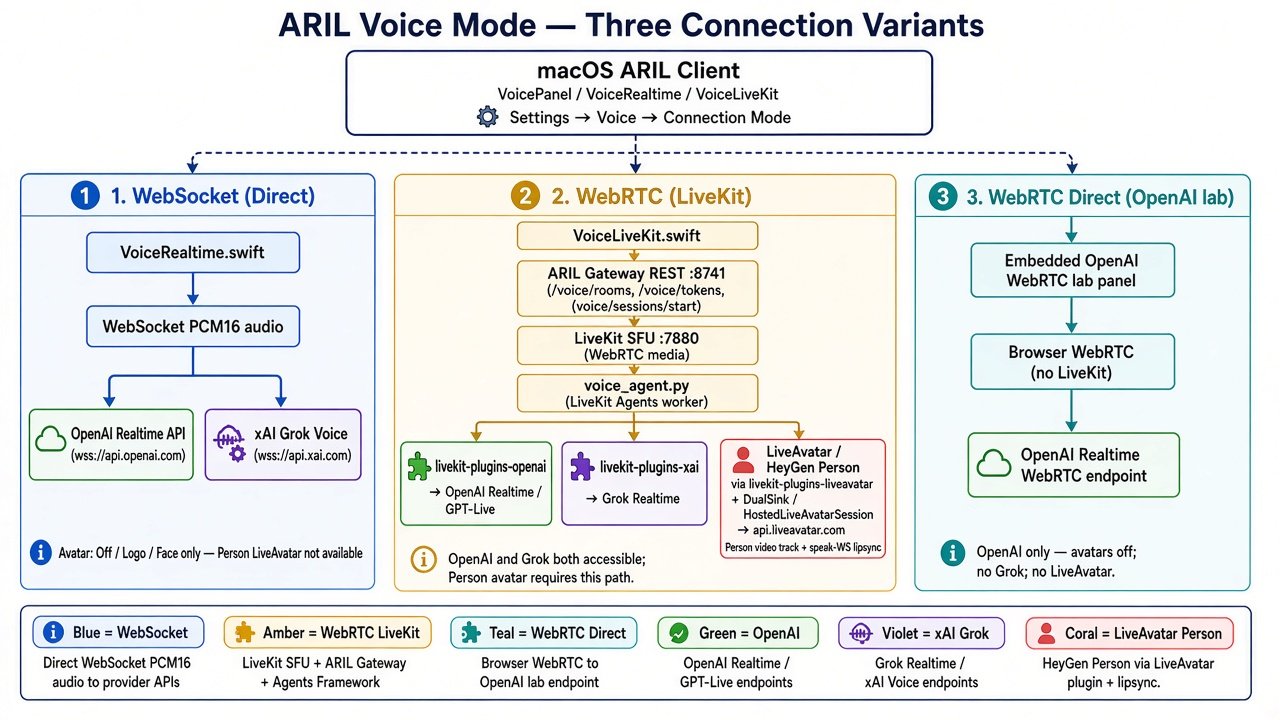
1. WebSocket (Direct)
Direct PCM16 WebSocket from the Mac app to OpenAI Realtime or xAI Grok. No LiveKit gateway. Avatar options: Off / Logo / Face only (Person LiveAvatar not available).
2. WebRTC (LiveKit)
App → ARIL gateway → LiveKit SFU → voice agent. OpenAI and Grok both accessible via LiveKit plugins. This is the path that supports Person avatars through LiveAvatar / HeyGen (video + lipsync).
3. WebRTC Direct (OpenAI lab)
Embedded OpenAI WebRTC lab (no LiveKit). OpenAI only; avatars off; no Grok; no LiveAvatar.
Prompt bar
- Return — send the prompt (or run a slash command).
- Shift+Return — insert a new line.
- ↑ / ↓ — recall recent prompts (slash commands are not stored in this history).
- Paperclip — attach images or files. On an image chip, Clean opens a sheet to paint or box a region for reconstruction (Gemini flash-image); Done replaces the attachment with the cleaned PNG at the original size.
- Microphone — dictate an editable prompt in Auto, Manual, Judge, or Loop without automatically sending it.
- Incognito — ghost beside the mode picker. Context stays; history, Learning, and logs skip this session and wipe on end or quit.
- Language — beside the mode picker. See Language translation.
- @ — open the skill picker (when Skills are enabled).
- Model picker lives in the status tray (not inside the prompt field).
Language translation
Available in ARIL Full. The Language control sits beside the mode picker.
- Chat transcript (Auto, Manual, Judge, Loop) — set User and ARIL languages so you write in one language and ARIL replies in another. The session transcript follows those choices. Prompt intelligence rewrites stay in the User language as clearer requests, not translation tasks.
- Voice — the Language popover has two independent pairs. Spoken conversation is the language you speak and the language ARIL replies in. Transcript is how each side is written below; set these to translate the transcript as you talk (for example speak English, hear Spanish, and read both sides in English).
In-chat previews
- Mermaid / SVG / ASCII — fenced blocks render as diagrams in the reply.
- HTML —
```html(or```html-preview) runs in a sandboxed WebKit view with no network access. - JavaScript — use
```js-previewor```javascript-previewfor a runnable sandbox; plain```javascriptstays as code only.
Skills
Skills are local ARIL capabilities (not MCP tools). Enable them in
Preferences → Skills (master switch plus per-skill toggles).
Type @ in the prompt to insert a skill mention.
-
OS Access — Full only. Run local shell commands on your Mac
(for example DNS lookups or listing files). Use
@OSor ask in natural language when the skill is on. Results appear under an OS Access label with exit code and output. Disabled when the Skills master switch is off. -
Document Export — write a real PDF or Word file from chat content.
Use
@Documentafter a reply (or ask to save results as PDF), or run/save pdf//save docx(addsessionfor the whole chat). The Save dialog defaults to a uniqueARIL-yyyy-MM-dd-HHmmssfilename. -
Email — draft with
@Email; ARIL asks before SMTP send. See Email. -
Custom skills — Preferences → Skills → Add skill… (name, summary,
@tags, instruction snippet). Stored as local JSON; injected when enabled. Confirm-first tools (Email / OS) stay confirm-first.
Manage skills with /skills list, /skills enable, or
/skills disable (optionally with a skill id such as os-access).
Configure SMTP in Preferences → Skills (host, port 465 SSL or 587 STARTTLS, mailbox, password).
Ask to send mail in Auto, Manual, Loop, or Voice, or type @Email in text modes. ARIL shows To / Cc / Bcc / subject / body
(and HTML or attachment names) and waits for Send. A local sent log is kept on this Mac.
Optional fence headers: Bcc, Content-Type: text/html,
Attachment: ~/path/file.pdf. Paperclip files on that turn are attached when the draft has no Attachment headers.
There is no IMAP inbox.
Scheduled jobs
The calendar toolbar opens scheduled prompts (once, hourly, daily, weekly). Each run starts a new session. Non-interactive auto-approves Loop, budget, and Email send confirmations. Full can install a LaunchAgent to wake ARIL at the next fire time and posts Notification Center alerts when a job was due while ARIL was closed or the Mac was asleep. Voice never auto-starts Live.
Slash commands
Type / in an empty prompt to open the command palette. Anything starting with / is treated as a command — unknown commands are not sent to a model.
| Command | What it does |
|---|---|
/status | Gateway, OpenRouter, Web Search, guardrails, cache, MCP, skills, and latest release check |
/version | Current app version and build |
/update | Check for a newer notarized release (or use Update in the status bar) |
/web | Toggle web search (on / off / status) — also Preferences → General |
/skills | List or toggle skills (list / enable / disable [id]) |
/save | Save last reply as PDF or Word (pdf / docx; add session for the whole chat) |
/cache | Session-cache size; compact or clear |
/new | Start a new chat session |
/clear | Clear the current mode’s results (Loop, Auto, Judge, or Voice only) |
/export | Export the session as Markdown |
/nmap | Example prompts for the local Nmap MCP scanner (Full) |
/codescan | Example prompts for the Semgrep code scanner (Full) |
/sslyze | Example prompts for the SSLyze TLS scanner (Full) |
/help | List commands in chat |
/reset | Clear ungrouped sessions and Learning data; keeps projects (asks to confirm) |
/exit | Quit ARIL |
Preferences
- General — Solo gateway, Startup (new session or resume previous across every mode), Web Search (on by default; applies to Auto, Manual, Judge, Loop, and Voice), Slow-response fallback (first-token timeout, default 30s; optional for Manual), budget caps, session cache, menu-bar icon. Delete all past sessions removes every session and all projects — for everyday cleanup use
/resetinstead. - Subscription(s) — paste OpenRouter and OpenAI (Voice) API keys. Local guardrails live under System Prompt: Sensitive Info redacts cards, SSN-like patterns, and confidentiality phrases; Prompt Injection blocks jailbreak-style prompts. Both run on-device before send;
/statusreports them. - Voice — optional default Voice session prompt and spoken end-chat command. Voice connects directly to OpenAI Realtime (not OpenRouter); the OpenAI key is on Subscription(s). Ready MCP servers, OS Access, Email, and Web Search are offered as Realtime function tools when enabled.
- Models — Default and per-category mappings for Auto; browse the OpenRouter catalog.
- MCP — Full: managed local scanners (Nmap, Semgrep, SSLyze) or custom remote HTTP MCP servers.
- Skills — Document Export, Email, OS Access (Full), and Add skill… for custom instruction snippets. Type
@in the prompt to pick a skill. - System Prompt — optional global system message for every send.
- Appearance — Themes (including System), text size, and typeface.
Toolbar shortcuts open Spend analysis, Learning, Model popularity, and Log analysis.
MCP tools
Full only. Turn on Use MCP servers in Preferences → MCP, enable a server, run Check,
then ask in Auto, Manual, Loop, or Voice. Tool status can appear in the reply as Using … · ….
Judge mode does not use MCP.
- Nmap Scanner (local) — requires
brew install nmap; only scan targets you own or are authorized to test. - Code Scanner / Semgrep (local) — requires
brew install semgrep. - SSLyze Scanner (local) — requires
pipx install sslyze; certificate and TLS posture.
Managed servers store rotating bearer tokens in Application Support .env (same place as your OpenRouter key).
Sessions & projects
- Create sessions from the sidebar or with
/new(⌘N). - Group sessions into Projects; right-click a project for Files… (Word, Excel, PDF, RTF, CSV, Markdown) and Search…. Main sidebar search stays global.
- Loop sessions appear only in Loop mode (gold tint + LOOP badge) and stay separate from Auto/Manual/Judge history.
- Voice sessions appear only in Voice mode (VOICE badge) and stay separate from text and Loop history.
- Project sessions use attached files as context — ask about documents without pasting them into chat.
- Export as Markdown from the sidebar, context menu, or
/export. /resetclears ungrouped sessions and Learning data but keeps projects and sessions inside them. Delete a project from its sidebar right-click menu.- Preferences → General → Delete all past sessions removes all sessions and all projects — prefer
/resetfor routine cleanup. - Local data for Full lives under
~/Library/Application Support/ARIL/.
Updates
When a newer release is available, use the sidebar Update button or run /update.
You can always download the latest DMG from
aril.host.
Troubleshooting
| Symptom | What to try |
|---|---|
| Gateway offline / starting… | Wait a few seconds; check Preferences → General (Solo); relaunch ARIL |
| API key required | Preferences → Subscription — connect OpenRouter or paste a key |
| Port 8741 in use | Quit other ARIL/gateway processes; relaunch |
| Empty chat after reinstall | History is in Application Support — restore that folder if you backed it up |
| Skills / @OS not running | Preferences → Skills — turn on Use skills and enable OS Access; check /status |
| In-app update keeps reinstalling an old version | Type /version and compare “Running from” with /Applications/ARIL.app on disk. Quit all ARIL copies, delete stale duplicates, install the versioned DMG from latest.json once (e.g. ARIL-0.5.26.dmg), then use in-app update again. Check ~/Library/Application Support/ARIL/update-install.log and scheduled jobs (Preferences → Schedule) if an old copy reopens. |
| Nmap / Semgrep not found | brew install nmap or brew install semgrep, then re-enable the MCP preset |
Still stuck? Email support@aril.host or visit Contact. You can also relaunch ARIL or download a fresh DMG from aril.host.